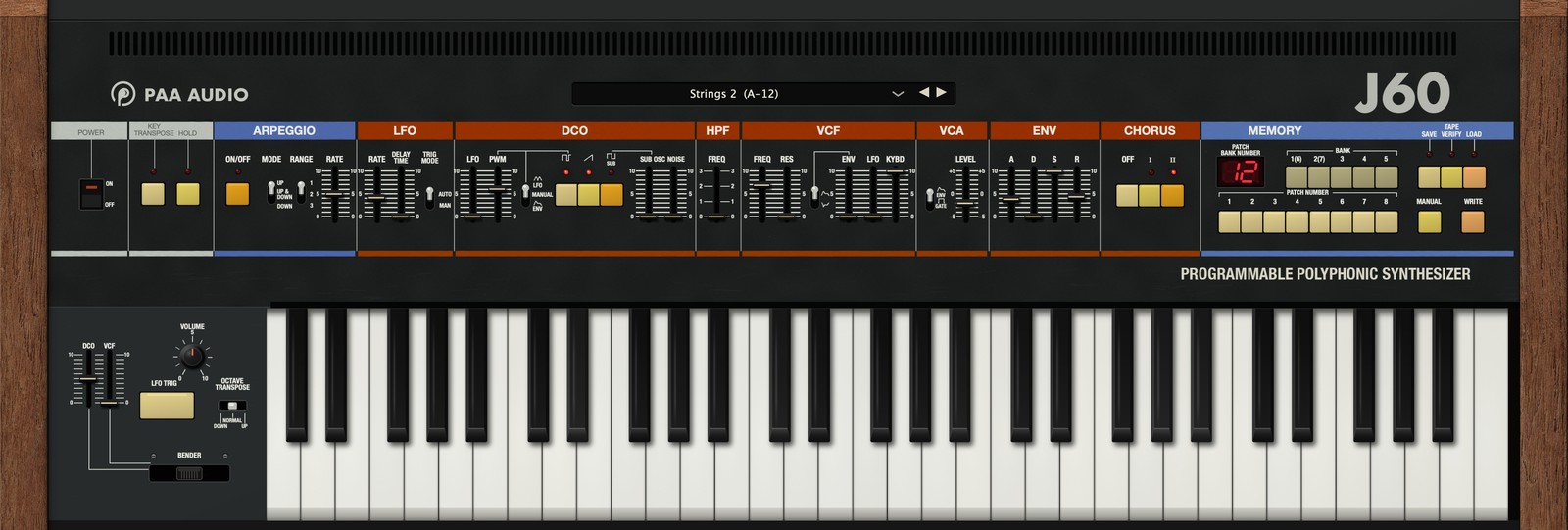
Some synths just feel right the moment you touch a key. J60 brings back one of them: the six-voice polysynth that defined the sound of the early 80s, with its creamy pads, round basses, singing leads and that unmistakable chorus. It breathes, drifts and warms up like the real thing, and every voice has its own small character, just like six voice cards in a vintage instrument. The original factory sounds are on board exactly as they left the factory, so the first chord you play already sounds like the record you grew up with.
Contents
1 · Installation & Requirements
Formats: macOS 11 or later (Apple Silicon and Intel): AU, VST3 and AAX (Pro Tools). Windows 10/11 (64-bit): VST3. Linux (64-bit x86): VST3.
AAX for Pro Tools on Windows will follow in a free update. On Linux, unpack the .tar.gz and copy PAA Audio J60.vst3 to ~/.vst3 (or /usr/lib/vst3 for all users), then rescan plugins in your DAW.
Run the installer and choose the plugin formats you use. Afterwards, rescan plugins in your DAW if it does not pick up J60 automatically. J60 appears under PAA Audio as an instrument.
J60 runs at any sample rate from 44.1 to 192 kHz. Because every voice is generated live in great detail, it needs more CPU than a sample-based synth. See Quality & CPU.
2 · Activation & Demo Mode
Without a license J60 runs as a full demo. Every 90 seconds a short burst of soft noise reminds you that this is the demo, and a red BUY button appears next to the logo.
To activate: right-click anywhere on the panel, choose Activate License... and select the
.lic file you received after purchase (usually in your Downloads folder). The noise and the BUY button
disappear immediately, and the menu shows Licensed to your name. No internet connection is needed.
~/Library/PAA Audio/J60/ (macOS) or
%APPDATA%\PAA Audio\J60\ (Windows). Licenses of other PAA plugins are kept in their own folders and never
overwrite each other.3 · Interface Overview
The panel follows the original layout from left to right: Power, Key Transpose and Hold, Arpeggio, LFO, DCO, HPF, VCF, VCA, ENV, Chorus and the Memory section. Below are the bender, the volume knob and the octave switch.

All sliders and switches respond to the mouse like the real controls. Right-click anywhere for the full menu (section 12). Use Size in that menu to scale the window from 100 to 200 %.
4 · Power, Key Transpose, Hold & Arpeggio
| Control | Function |
|---|---|
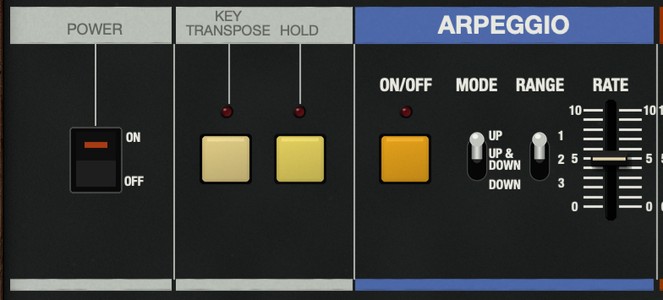
| KEY TRANSPOSE | Press the button, then a key: the whole keyboard transposes to that key. Press C to go back. |
| HOLD | Holds released notes until you switch Hold off (also MIDI CC64). |
| ARPEGGIO ON/OFF | Plays the held notes one after another. |
| MODE | UP, UP & DOWN or DOWN. |
| RANGE | 1, 2 or 3 octaves. |
| RATE | Arpeggio speed (internal clock). |
To sync the arpeggio to your DAW, set Rear Panel > ARPEGGIO CLOCK to HOST and choose a note value under ARPEGGIO CLOCK: Division (1/4 to 1/32, also triplets). The tempo then comes from your project and the RATE slider has no effect, just like the hardware with a cable in its clock input.
5 · LFO
| Control | Function |
|---|---|
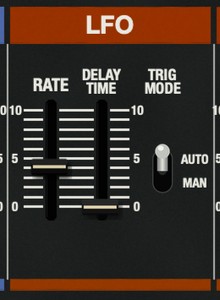
| RATE | LFO speed, from very slow waves to fast vibrato. |
| DELAY TIME | Fades the LFO in after a key is played (delayed vibrato). |
| TRIG MODE | AUTO: every new phrase restarts the delay. MANUAL: the LFO only works while the LFO trigger on the bender is held (or MIDI CC1 above half). |
The LFO has the soft, rounded movement of the original, which gives vibrato and filter sweeps their gentle, musical character.
6 · DCO
| Control | Function |
|---|---|
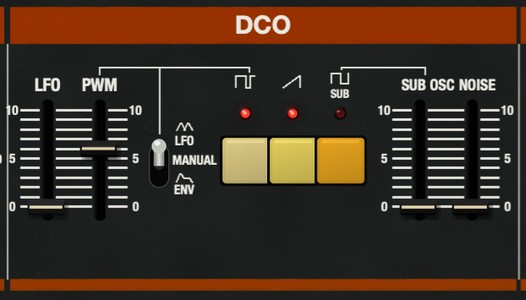
| LFO | Vibrato depth. |
| PWM | Pulse width. The switch selects the source: LFO, MANUAL (slider sets a fixed width) or ENV. |
| Pulse / Saw / Sub buttons | Switch the pulse wave, the sawtooth and the sub-oscillator on or off. They can be combined. |
| SUB OSC | Level of the square wave one octave below. |
| NOISE | White noise level. |
7 · HPF & VCF
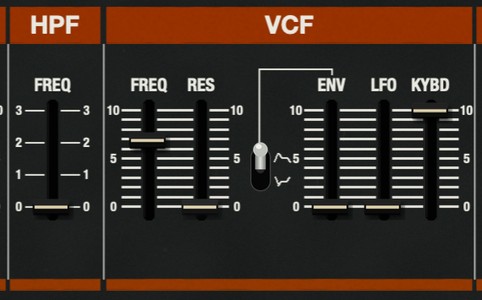
| Control | Function |
|---|---|
| HPF | Four-step high-pass filter. Position 0 is flat; 1, 2 and 3 thin out the low end step by step. |
| FREQ | Cutoff of the four-pole low-pass filter. |
| RES | Resonance. At the top the filter self-oscillates and becomes a sine-wave source. |
| ENV | How much the envelope moves the cutoff. The switch next to it inverts the envelope. |
| LFO | Filter modulation by the LFO (wah). |
| KYBD | Keyboard follow: higher notes open the filter more. |
8 · VCA & Envelope
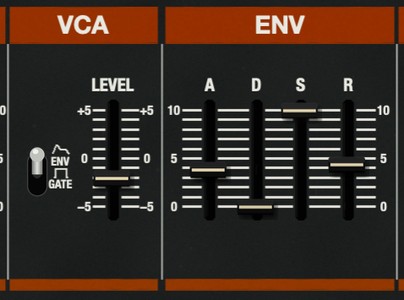
| Control | Function |
|---|---|
| VCA switch | ENV: the envelope shapes the volume. GATE: plain organ-style on/off. |
| LEVEL | Voice level before the chorus. |
| A / D / S / R | Attack, decay, sustain and release of the envelope (attack 1 ms to 3 s, decay and release up to about 12 s). |
9 · Chorus
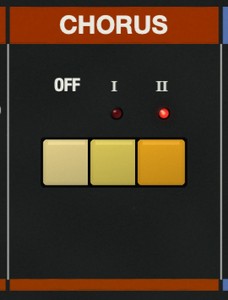
The famous stereo chorus, with all its width, shimmer and gentle hiss. I is slow and wide, II deeper and faster, and pressing both gives the fast I+II vibrato chorus. Press OFF to switch it off.
The hardware was changed during production (from serial number 265500 on). J60 starts with the earlier version, which has the slower, deeper chorus heard on the original factory demos. You can switch to the later version under Rear Panel > HARDWARE REVISION.
10 · Bender, Volume & Octave Transpose
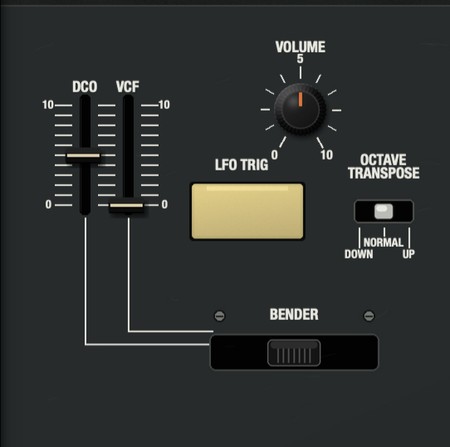
| Control | Function |
|---|---|
| DCO / VCF sliders | How far the bender bends pitch and filter. |
| BENDER | Drag left and right to bend (also MIDI pitch bend). |
| LFO TRIG | Starts the LFO in TRIG MODE MANUAL (also MIDI CC1). |
| VOLUME | Master output level. |
| OCTAVE TRANSPOSE | Shifts the keyboard down or up by one octave. |
11 · Patches, Memory & Tape
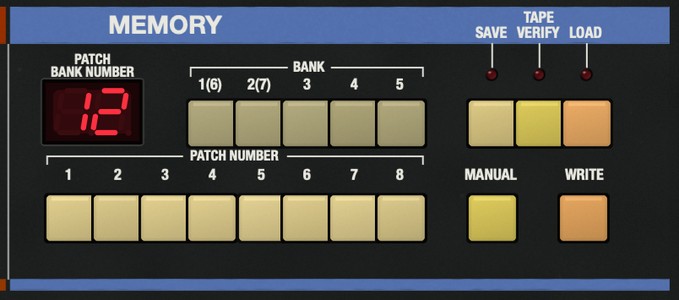
J60 comes with the original factory patches of Bank A and Bank B (2 × 56), the example patches from the original owner's manual, and 98 PAA presets in 11 categories. Open them from the preset bar or with the right-click menu (Presets by Category and Factory Patches).
The memory section works like the hardware: choose a bank and a patch number to recall a patch from the internal memory. Use Save as User Preset in the menu to store your own sounds. When saving, pick a category (Bass, Pads, Leads and so on): the preset then appears in that category of the preset bar, below the factory sounds under the heading User. Presets without a category stay under User Presets. To change a category later, use User Presets > Set Category.
Tape: J60 reads and writes the original tape format. Under Memory / Tape you can load a recording of a real tape dump (WAV, AIFF or MP3) with TAPE LOAD, save the memory as a tape file with TAPE SAVE and check a recording with TAPE VERIFY. This way you can use patch banks made for the original instrument.
Preset Packs with extra sounds are described in the next chapter.
12 · Preset Packs
Preset packs add new sounds to J60. Each pack has 40 presets, made on J60 for one musical style. A pack comes as a single file with the ending .j60pack. The same file works on Mac and Windows, and nothing needs to be installed outside the plugin.
| Pack | Sounds | Contents |
|---|---|---|
| Synthwave & Night Drive | Neon basses, wide saw pads, gated chords and bright leads | 8 Bass, 7 Pads, 8 Leads, 1 Keys, 5 Plucks & Mallets, 6 Synths & Stabs, 2 Strings, 2 Brass, 1 SFX |
| Lo-fi & Chillhop | Dusty keys, warm pads, round bass and soft plucks with a gentle tape wobble | 6 Bass, 7 Pads, 4 Leads, 8 Keys, 6 Plucks & Mallets, 2 Strings, 2 Organ, 3 Woodwinds, 2 SFX |
| House & Deep House | Chord stabs, organ bass, plucks and airy pads | 8 Bass, 6 Pads, 3 Leads, 4 Keys, 4 Plucks & Mallets, 9 Synths & Stabs, 4 Organ, 2 SFX |
| Cinematic & Ambient | Slow pads, strings, drones and textures | 2 Bass, 12 Pads, 3 Leads, 4 Plucks & Mallets, 6 Strings, 3 Brass, 2 Woodwinds, 8 SFX |
You can listen to every pack and see all preset names on the J60 page. A free Pack Sampler with two presets from each pack is available there too.
Installing a pack
- Download the .j60pack file. After buying, the link is in your email and in your account at paa-audio.de.
- Open J60 in your DAW.
- Drag the file onto the J60 window. Or right-click J60 and choose Preset Packs > Install Preset Pack..., then pick the file.
- J60 confirms the pack name and the number of presets. The pack is ready right away, in every project.
Finding the presets
Pack presets appear in two places. In each category of the preset bar they are listed under the name of their pack, between the factory sounds and your own presets. Under Preset Packs you can browse them by pack and then by category. The arrow buttons step through every preset once.
Pack presets are loaded like any other preset. To keep a changed version, save it as a user preset: your own preset is stored separately, the pack itself stays unchanged.
Updating and removing
Installing a newer version of a pack replaces the old one. Preset Packs > Remove Preset Pack removes a pack; the folder goes to the trash, and you can install it again from your .j60pack file at any time. Open Packs Folder shows where the packs are stored:
- macOS:
~/Library/PAA Audio/J60/Presets/Packs - Windows:
%APPDATA%\PAA Audio\J60\Presets\Packs - Linux:
~/.config/PAA Audio/J60/Presets/Packs
13 · Right-Click Menu
| Entry | What it does |
|---|---|
| Presets by Category / Factory Patches / User Presets | Load presets; save, delete and open the user preset folder. |
| Preset Packs | Browse installed packs, install, remove, open the pack folder, get more packs. See Preset Packs. |
| Memory / Tape | Restore Factory Bank A, switch between loaded tapes, TAPE LOAD, SAVE and VERIFY. |
| Rear Panel > TUNE | Fine tuning ±50 cent. The factory alignment is A4 = 442 Hz, like the original. |
| Rear Panel > OUTPUT LEVEL | H, M or L, like the output switch on the back of the original. |
| Rear Panel > OUTPUT CALIBRATION | Studio (+15.5 dB, suited for working in a DAW) or Hardware (original output level). |
| Rear Panel > HARDWARE REVISION | Early or Late chorus version, see Chorus. |
| Rear Panel > OUTPUT (MONO/STEREO) | Stereo or mono output. |
| Rear Panel > ARPEGGIO CLOCK | Internal or host tempo, plus the note value. |
| Rear Panel > VCF PEDAL | Sets the filter pedal voltage (3 V = no pedal). Also MIDI CC4. |
| Rear Panel > MEMORY PROTECT | Protects the internal memory. |
| Service > Quality | Eco, Normal or High, see Quality & CPU. |
| Service > Voice Assign | Normal or Unison (all six voices on one note, the original's service mode). There is no detune: the DCOs share one crystal clock, so the stack sounds dense and punchy rather than wide. The voices start with the small offsets of the original's counters. Add the chorus for width. |
| Service > Mains Frequency | 50 or 60 Hz: sets the faint 100 or 120 Hz power-supply ripple of the original to your local mains. |
| Size | Window size 100 to 200 %. |
| Activate License / Buy License | See Activation. |
The version number is shown at the top of the menu.
14 · MIDI
| Message | Function |
|---|---|
| Pitch bend | Bender |
| CC1 (mod wheel) | LFO trigger (above half) |
| CC4 (foot controller) | VCF pedal |
| CC64 (sustain) | Hold |
| CC120 / CC123 | All sound off / all notes off |
| CC121 | Reset bender, hold and pedal |
All panel controls can also be automated from your DAW.
Why the mod wheel is a switch: the original has no mod wheel. Its bender lever has a push button that starts the LFO, and the amount is set on the panel (LFO slider in the DCO and VCF sections). J60 maps the mod wheel to that button, so with LFO TRIG MODE set to MANUAL, pushing it past half brings in the vibrato or filter wobble set on the panel, exactly like pushing the lever. In AUTO the LFO runs by itself and the mod wheel has no effect. For a gradual fade in, use the LFO DELAY TIME slider, as players of the original do.
No velocity, six voices: like the original, J60 does not respond to how hard you play, and it has six voices. This is part of its character and of how its patches were designed.
15 · Quality & CPU
J60 generates every voice live and in great detail. Choose the quality in the right-click menu:
- Eco is made for playing and mixing with many tracks. It needs roughly half the CPU of Normal. The sound is the same character; only in the very top of the frequency range and in the brilliance of the chorus is there a small difference, which you will rarely notice in a mix.
- Normal gives full precision across the whole keyboard.
- High adds extra precision for the very top of the keyboard and the filter near 20 kHz.
When you bounce or export, J60 always renders in High, whatever is selected. So you can play and mix in Eco and still get the best possible result in your export. Because of this, an export can sound very slightly different from what you heard while playing in Eco, mostly in the top end and the chorus shimmer. If you want to hear exactly the export while mixing, switch to High for the final listen. Switching the quality takes a moment, during which J60 is briefly silent.
At sample rates of 88.2 kHz and above, J60 computes the sound at 44.1 or 48 kHz, the rates at which it was calibrated against the hardware, and converts the result to your project rate with a linear-phase filter (flat to 20 kHz). This keeps the sound identical across sample rates and saves CPU. The filter adds a delay of about half a millisecond, which J60 reports to your DAW so it is compensated automatically.
Voices that are silent cost very little. CPU use rises with the number of sounding voices and with high resonance in the top octave. A buffer size of 256 samples or more is recommended, especially at 96 kHz. Large preset changes while notes are sounding cost a little extra for a moment. With many instances playing full chords at the same time, freeze or bounce the parts you have finished.
16 · Tips
- Start with the factory banks: these are the sounds the instrument became famous for.
- For the classic string pad, use Saw with PWM from the LFO, a slow attack and Chorus I.
- Chorus I+II on a plain pulse wave gives the typical fast warble.
- High resonance with KYBD at 10 turns the filter into a playable sine oscillator.
- If you want the exact output level of the hardware, set OUTPUT CALIBRATION to Hardware.
17 · Support
Questions or problems? Write to us via paa-audio.de. Please include the version number from the top of the right-click menu.