PAA Audio
Legend Channel
British console channel strip — preamp · filters · 4-band EQ · dynamics
User Manual · v1.2.4 · VST3 · AU · AAX (macOS, Pro Tools) · macOS / Windows / Linux
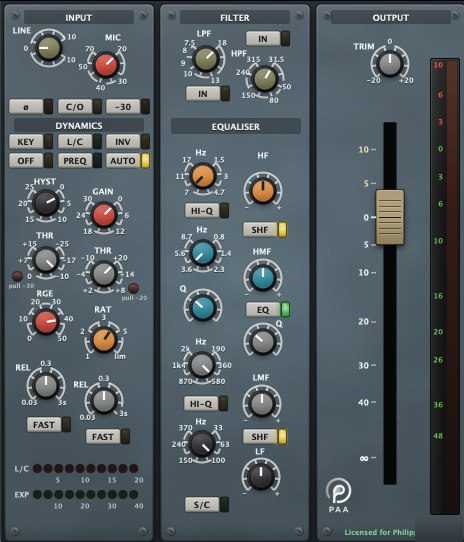
British console channel strip — preamp · filters · 4-band EQ · dynamics
The Legend Channel is a circuit-level emulation of a legendary British large-format console channel: fat, forward and musical. Every stage (input transformer, op-amps, VCA dynamics) is solved as a real circuit per sample, so the strip reacts to level and drive the way the hardware does.
Run the installer package (PAA-Legend-Channel.pkg), signed and notarized by Apple,
so it installs without a Gatekeeper warning.
| Format | Location |
|---|---|
| VST3 | /Library/Audio/Plug-Ins/VST3 |
| AU | /Library/Audio/Plug-Ins/Components |
| AAX | /Library/Application Support/Avid/Audio/Plug-Ins (Pro Tools) |
The AAX build for Pro Tools is PACE-signed and Apple-notarized, and is installed by the same macOS package — no separate download.
Run PAA-Audio-Legend-Channel_1.2.4_win.exe. It installs the VST3 to
C:\Program Files\Common Files\VST3. If Windows SmartScreen appears, click
More info → Run anyway, then restart your DAW.
Extract PAA-Audio-Legend-Channel_1.2.4_linux.tar.gz and copy the
PAA Audio Legend Channel.vst3 folder to ~/.vst3 (or
/usr/lib/vst3). Tested with Reaper, Bitwig and Ardour.
After installing, rescan plug-ins in your DAW (Logic validates the AU automatically on next launch).
System: macOS 10.13+ (Apple Silicon & Intel), Windows 10+ (64-bit), or modern 64-bit Linux (glibc 2.31+, e.g. Ubuntu 20.04+). The GUI is resizable from 100 % to 200 %.
Without a license the plug-in runs in Demo Mode: fully functional, but a short noise burst is inserted periodically. The footer of the OUTPUT section shows DEMO and an ACTIVATE button.
.lic) you received after purchase, it lives in your
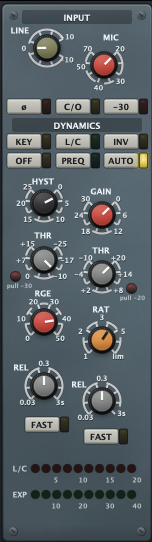
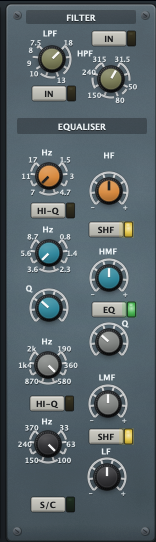
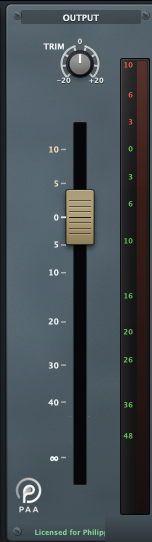
Downloads folder by default..lic file safe.The strip is laid out in three columns, signal flowing left to right:
| Control | Range | Function |
|---|---|---|
| C/O | Line / Mic | Input change-over. Off = Line (default), lit = Mic (engages the input transformer and the red MIC gain). |
| LINE | −10 … +10 dB | Line-input gain (centre = unity), used in Line mode. |
| MIC | 20 … 70 | Mic-preamp drive (Mic mode). ITB there is no quiet mic to bring up to line level, so the knob drives the NE5534 preamp for harmonic colour while an auto-makeup holds the output at ≈ line — turn it up for more character at ~constant loudness (minimum = clean). Mic and Line therefore hit the dynamics at the same level. |
| −30 | on / off | Input pad, attenuates the mic input by 30 dB for hot sources (shifts the effective range to roughly −10 … +40 dB). |
| ø | on / off | Polarity invert (phase). |
| PREQ | on / off | Pre-EQ, moves the equaliser before the dynamics section, so the compressor reacts to the EQ’d signal. |
Two 12 dB/octave filters sit ahead of the EQ. Each has its own IN button.
| Control | Range | Function |
|---|---|---|
| HPF | 31.5 Hz … 315 Hz | High-pass filter, removes rumble and low-end build-up. |
| LPF | 7.5 kHz … 18 kHz | Low-pass filter, tames harsh top end / air. |
| IN | on / off | Switches each filter in or out of circuit. |
A musical 4-band EQ. The master EQ button switches the whole section in/out. Boost/cut is
±18 dB per band (knob marks show only − / +; 12 o’clock = flat).
| Band | Frequency | Notes |
|---|---|---|
| HF | 1.5 kHz … 17 kHz | SHF = shelf (default) or bell · HI-Q = narrower bell. |
| HMF | 0.8 kHz … 8.7 kHz | Bell, with its own Q control (proportional-Q response). |
| LMF | 190 Hz … 2 kHz | Bell, with its own Q control (proportional-Q response). |
| LF | 33 Hz … 370 Hz | SHF = shelf · HI-Q = narrower bell. |
The S/C button (bottom of the EQ section) routes the EQ into the dynamics sidechain, see Sidechain & Key.
The dynamics section is a faithful model of the console’s discrete sidechain driving a VCA. It holds a compressor and a gate/expander that share one detector path.
| Control | Range | Function |
|---|---|---|
| THR | −10 … +20 dB | Threshold. Starts at +20 (fully up = compressor inactive), turn down until it grabs. |
| RAT | 1 · 2 · 3 · 5 · Lim | Ratio. Lim = limiting (∞:1). |
| REL | 0.03 s … 3 s · Auto | Release. Fully clockwise = Auto (program-dependent). |
| GAIN | 0 … +30 dB | Make-up gain. |
| L/C | on / off | Switches the compressor into circuit. |
| FAST | on / off | Fast attack (otherwise program-dependent attack). |
| AUTO | on / off | Auto make-up gain, keeps perceived level steady as you compress. |
| THR pull | lamp | Pull the small lamp under THR to shift the threshold range down by 20 dB for very low thresholds. |
The mode button cycles OFF → EXP → GATE (the label shows the current mode).
| Control | Range | Function |
|---|---|---|
| THR | −25 … +15 dB | Threshold below which the gate/expander acts. |
| RGE | 0 … 50 dB | Range, how far the signal is attenuated when closed. |
| REL | 0.03 s … 3 s | Release time. |
| HYST | 0 … 25 dB | Hysteresis, gap between open and close thresholds (stops chatter). |
| FAST | on / off | Fast attack opening. |
| INV | on / off | Invert, turns the gate into a ducker (attenuates when the key is present). |
| KEY | on / off | Listen to the external sidechain key instead of the channel itself. |
| THR pull | lamp | Pull the lamp under the gate THR to shift its range down by 30 dB. |
The two GR meters at the bottom-left show gain reduction for the compressor (L/C) and the gate/expander (EXP/GATE).
Gain reduction is also sent to your host’s metering, so an SSL 360° / UC‑1 controller (and the Pro Tools mixer) shows the Legend Channel’s compressor and gate reduction on its own channel meters — no setup, just insert the plug‑in.
The button at the bottom of the DYNAMICS column sets how the two channels of a stereo instance relate. It affects the dynamics only and adds no colour — it changes which gain reduction is applied, not the tone.
| DUAL | default | Left and right run as two fully independent mono channels, each with its own compressor and gate detector (classic dual‑mono). |
| STEREO | The compressor and gate sidechains of both channels are linked — exactly like the console’s link bus. Both sides always react to the louder channel and apply the same gain reduction, so the stereo image stays locked instead of drifting when one side gets louder. Compressor and gate link independently. |
Use STEREO on any stereo source you compress or gate — mix bus, drum overheads, stereo synths, piano, stereo recordings — to keep the dynamics from pulling the stereo image around.
| Control | Range | Function |
|---|---|---|
| TRIM | −20 … +20 dB | Output trim. |
| Fader | −∞ … +10 dB | Channel fader (the printed scale tracks the cap exactly). |
| Meter | peak, dBFS | Output peak meter with the console’s headroom scale. |
The dynamics can be driven from an external source (the “key”):
For frequency-conscious dynamics, enable S/C in the EQ section: the EQ is then inserted into the detector path. Boost the sibilance region on the EQ and the compressor becomes a de-esser; this works on the channel’s own signal, no external routing required.
Right-click anywhere on the chassis background to open the menu:
Click the PAA logo in the OUTPUT section to open paa-audio.de.
Questions, license trouble, or just feedback? Write me at paa-audio.de. Please include
your plug-in version (shown in your DAW) and the host/OS you’re running. PAA Audio is one person, so it's actually me reading and replying. Thanks for trying the Legend Channel.
Philipp